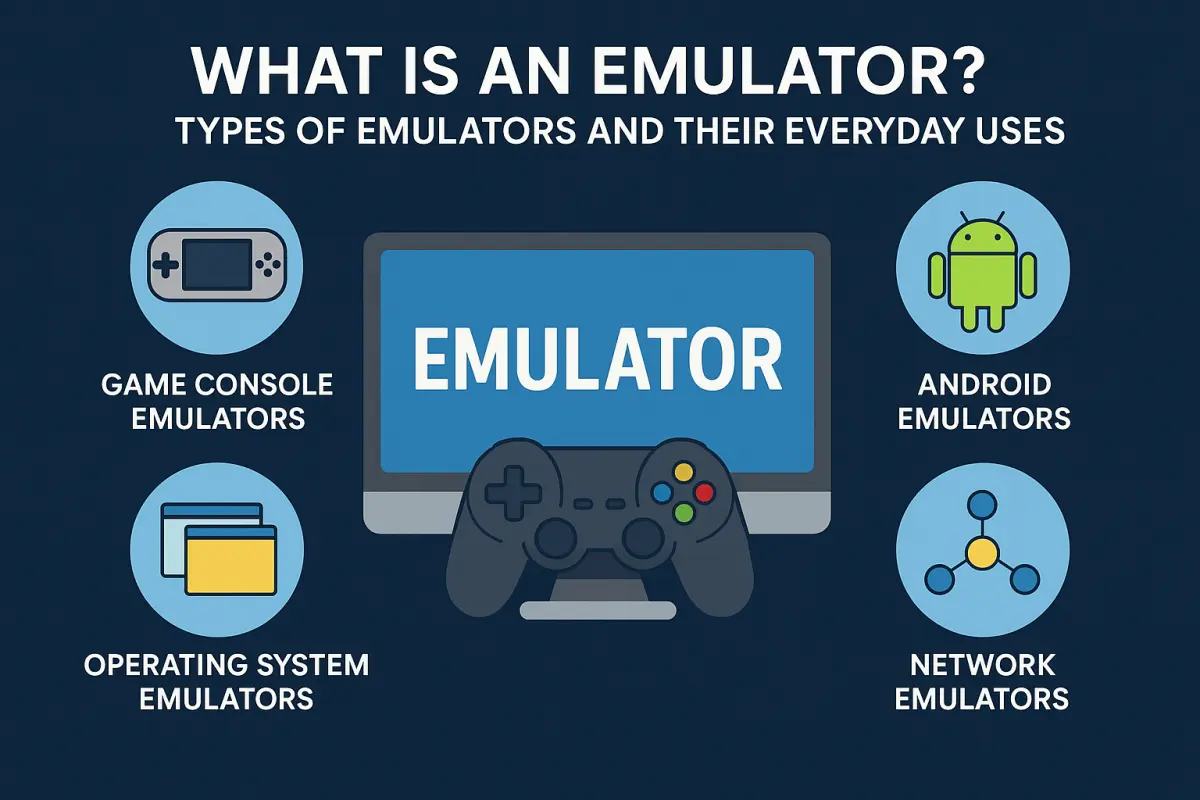
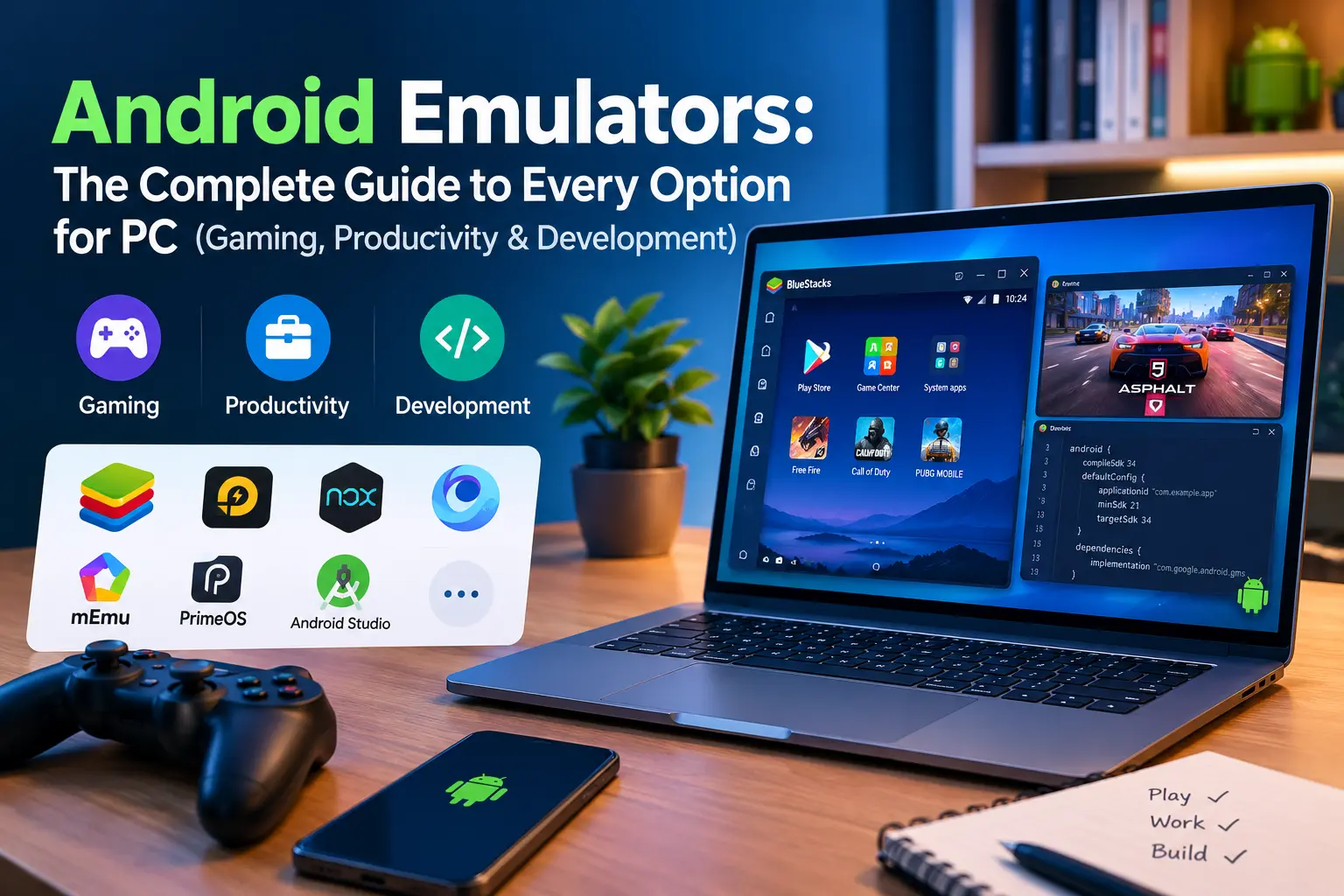
Type "Android emulator" into Google and you'll get no shortage of opinions — most of them from sites that picked eight or nine tools, wrote a paragraph on each, and called it a comparison. That's fine as far as it goes, but it usually misses half the picture, because "Android emulator" actually covers four genuinely different categories of software with different goals: emulators built for gaming, ones built to turn your PC into something closer to an Android tablet, ones built for developers who need to test apps, and Google's own official option for its Play Games catalog.
This guide covers all four, with 19 tools total — more than any single roundup you'll find elsewhere — and every one links through to a dedicated page on this site with setup instructions specific to that tool, rather than a paragraph and a "visit website" button.
What an Android Emulator Actually Does
An Android emulator creates a virtual Android environment on your computer, so apps and games built for phones run on Windows (or, for a handful of options, macOS and Linux) instead. The tricky part is that phones run on ARM processors and most PCs run on x86 — different instruction sets entirely. Emulators bridge that gap either by translating instructions on the fly (which costs performance) or, more commonly today, by using hardware virtualization so the translation overhead is much smaller. That's also why virtualization support in your BIOS matters so much for emulator performance — it's not an optional extra, it's the thing doing most of the heavy lifting.
It's also why no emulator is a perfect 1:1 copy of a real phone. Camera access, cellular features, and some sensor-dependent apps behave differently or don't work at all in an emulated environment. For gaming and general app use this rarely matters; for QA testing a camera-heavy app, it's worth knowing upfront.
How to Actually Choose One
Before the list, it's worth answering three questions honestly, because they eliminate most of the options immediately:
What are you actually using it for? Gaming, running your everyday apps on a bigger screen, or testing an app you're building? These three use cases point to almost entirely different tools, which is exactly why the sections below are split that way instead of one giant ranked list.
What does your PC have to give it? Most emulators want 4GB of RAM at an absolute minimum and run noticeably better with 8GB+. Older or budget laptops should lean toward the lighter options called out below rather than the heaviest all-in-one players.
Where are you downloading it from? This one gets skipped constantly and it's the one that actually causes problems. Emulator installers are a favorite target for bundled adware on file-sharing and "download hub" sites. Get installers from the developer's own site or a page you trust, and pay attention to the installation wizard — untick anything offering to install a second piece of software alongside it.
Quick Comparison
Here's the short version before the full breakdown below — each one's main strength, what it runs on, and what it costs.
For gaming:
- BlueStacks: All-round gaming, biggest game library support. Runs on Windows and macOS. Free, with a paid tier available.
- LDPlayer: Competitive and multi-instance gaming. Windows only. Free.
- NoxPlayer: Gamepad support and macro recording. Windows and macOS. Free.
- MEmu Player: Low-spec PCs and older hardware. Windows only. Free.
- GameLoop: Tencent titles like PUBG Mobile and COD Mobile. Windows only. Free.
- Smart GaGa: Lightweight and battery-friendly on laptops. Windows only. Free.
- KoPlayer: Older and budget systems. Windows and macOS. Free.
- XePlayer: Simple setup for casual gaming. Windows and macOS. Free.
- Andy Emulator: Cross-device sync features. Windows and macOS. Free.
- GTarcade Emulator: GTArcade's own game catalog. Windows only. Free.
The official option:
- Google Play Games: Official Google support for select titles. Windows only. Free.
For a full desktop experience:
- Prime OS: Full Android desktop experience. Windows via dual-boot or VM. Free.
- Phoenix OS: Desktop-style Android, runs well on older PCs. Windows via dual-boot or VM. Free.
- Bliss OS: Open-source, typically the most up-to-date Android version. Windows or VM. Free.
- Remix OS: Windows-like multitasking on Android. Windows via dual-boot or VM. Free.
- Android-x86: Barebones, developer-friendly base. Windows or VM. Free.
- OpenThos: Hybrid Android/desktop UI. Windows via dual-boot or VM. Free.
For development and testing:
- Genymotion: Professional app testing and QA. Windows, macOS, and Linux. Free tier, with paid plans for teams.
Legacy:
- Droid4X: Legacy support only — see the note further down before choosing this one. Windows only. Free.
Best Android Emulators for Gaming
This is where most people start, and it's also where the differences between tools matter most — the "best" one genuinely depends on your hardware and what you're playing.
BlueStacks is the name most people already know, and it earns that reputation through sheer breadth: game compatibility, a large user base (which matters for troubleshooting — someone's usually hit your exact issue before), and features like key mapping and multi-instance play that let you run several accounts or games side by side. If you only try one emulator, this is the reasonable default.
LDPlayer trades some of that breadth for speed. It's built with competitive mobile gaming specifically in mind, and its multi-instance manager is genuinely lighter on system resources than BlueStacks' — worth trying if you're running several game accounts at once and BlueStacks feels sluggish doing it.
NoxPlayer leans into physical controller support and macro recording, which makes it a solid pick if you'd rather play with a gamepad than a keyboard, or if you want to automate repetitive in-game actions.
MEmu Player is the one to reach for if your PC is a few years old. Its minimum requirements sit noticeably lower than the big three above, and it still handles mainstream titles without much fuss.
GameLoop is built by Tencent, and it shows — it's tuned specifically for Tencent's own mobile titles like PUBG Mobile and Call of Duty: Mobile, with network optimizations for those games that general-purpose emulators don't bother with. If those are the games you're playing, this is worth using over a generic option.
Smart GaGa and KoPlayer both target the lighter end of the spectrum — less flashy, fewer bells and whistles, but easier on older laptops and batteries.
XePlayer and Andy Emulator round out the casual-gaming options, with straightforward setup aimed at people who just want to install a game and start playing without configuring much.
GTarcade Emulator is a specialty pick if you specifically play GTArcade's own game library — it's tuned around that publisher's titles rather than being a general-purpose player.
Weighing BlueStacks against LDPlayer specifically? We've written a full head-to-head on that exact question.
The Official Option: Google Play Games for PC
Worth calling out on its own because it's not a third-party tool at all — Google Play Games is Google's own official app for running select Play Games titles on Windows. The catalog is smaller than what you'll get through BlueStacks or LDPlayer, since publishers have to specifically enable PC support, but it comes directly from Google with no bundled-software risk, and it's the simplest option if the games you want happen to support it.
Best "Android as a Desktop OS" Emulators
This category gets talked about far less than gaming emulators, but it solves a genuinely different problem: instead of running Android apps inside Windows, these boot Android itself as something close to a full desktop operating system — with a taskbar, resizable windows, and multitasking that feels more like a PC than a phone.
Prime OS is the most polished option in this category, with a genuinely desktop-like interface, support for both gaming and productivity apps, and reasonably active development.
Phoenix OS offers a similar pitch and tends to run comfortably on older hardware that struggles with Prime OS.
Bliss OS is open-source and, among this group, typically ships closer to the current version of Android — worth checking if running a more up-to-date Android build matters to you.
Remix OS popularized the "Android with a taskbar and overlapping windows" concept and still has a loyal following, even though official development has slowed.
Android-x86 is the barebones, open-source project the others in this category build on — less polished, more suited to developers and tinkerers than to someone wanting a plug-and-play experience.
OpenThos takes a slightly different angle, blending a more traditional desktop shell over Android — worth a look if the others feel too phone-like for your taste.
Best Android Emulators for Developers and Testing
If you're building an app rather than just using one, the priorities flip: raw gaming performance stops mattering, and accuracy, debugging tools, and automation support take over.
Genymotion is the serious option here — built specifically for QA and development workflows, with support for multiple Android versions and device profiles, and integration with common testing and automation tooling. It's the one professional teams actually reach for rather than repurposing a gaming emulator for testing.
It's worth knowing that Android Studio ships with Google's own official emulator (AVD) built in — free, and the most accurate emulator available since it's made by the same people who build Android. Most developers still end up pairing it with something like Genymotion for faster iteration and easier multi-device testing.
A Legacy Option Worth Knowing About
Droid4X was a popular pick several years ago, but development has effectively stopped and it's shown its age against actively maintained alternatives above. We're covering it here because people still search for it and deserve an honest answer rather than a dead link: if you're choosing fresh today, one of the actively developed options above will serve you better.
Is It Safe to Use an Android Emulator?
Generally, yes — the tools listed here are legitimate, widely used software, not something in a legal gray area. The actual risk isn't the emulator itself, it's where you download it from. Third-party download aggregators frequently repackage installers with bundled adware or outdated, unpatched versions. Get the installer from the developer's own site (or from the dedicated page linked for each tool above), read through the installation wizard instead of clicking "next" on autopilot, and you're not taking on any more risk than installing any other desktop software.
Frequently Asked Questions
What is the best Android emulator overall? For most people, BlueStacks remains the safest default thanks to its compatibility and community size — but "best" really depends on your use case, which is exactly why this guide is split by category instead of giving one blanket answer.
Are Android emulators free? Every gaming and desktop-OS emulator on this list is free to use. Genymotion offers a free tier for personal use with paid plans for teams that need more devices and automation features.
Can I play games like PUBG Mobile or Free Fire on an emulator? Yes — BlueStacks, LDPlayer, NoxPlayer, and GameLoop all support these specifically, with GameLoop being purpose-built for Tencent's own titles.
Do Android emulators work on Mac? Some do. BlueStacks, NoxPlayer, KoPlayer, Andy Emulator, XePlayer, and Genymotion all offer macOS versions; most of the desktop-OS options and lighter Windows-only tools do not.
Why is my emulator running slowly? The most common cause by far is hardware virtualization (Intel VT-x / AMD-V) being disabled in your BIOS. Check that first before assuming your hardware simply isn't capable enough.
Our Picks by Category
- Best overall for gaming: BlueStacks
- Best for low-end or older PCs: MEmu Player
- Best for a full Android desktop experience: Prime OS
- Best for developers and QA: Genymotion
- Best official, no-risk option: Google Play Games
Whatever you land on, every emulator above links through to a full setup guide with system requirements and troubleshooting specific to that tool — worth a look before you install, especially if you're not sure your PC meets what it needs.

![Best Android Emulator for Low-End PCs [2025]](/storage/blog/images/best-android-emulator-for-low-end-pcs-2025-1_SsFbyyId.webp)